Pass location & nearby wallet reminders
How a saved pass can surface near your café, how to enable it, and what location does not track.
Pass location is optional. When it is set, Apple Wallet or Google Wallet can suggest the customer's saved loyalty pass when they are near your café, so they can tap once and show the QR at the counter.
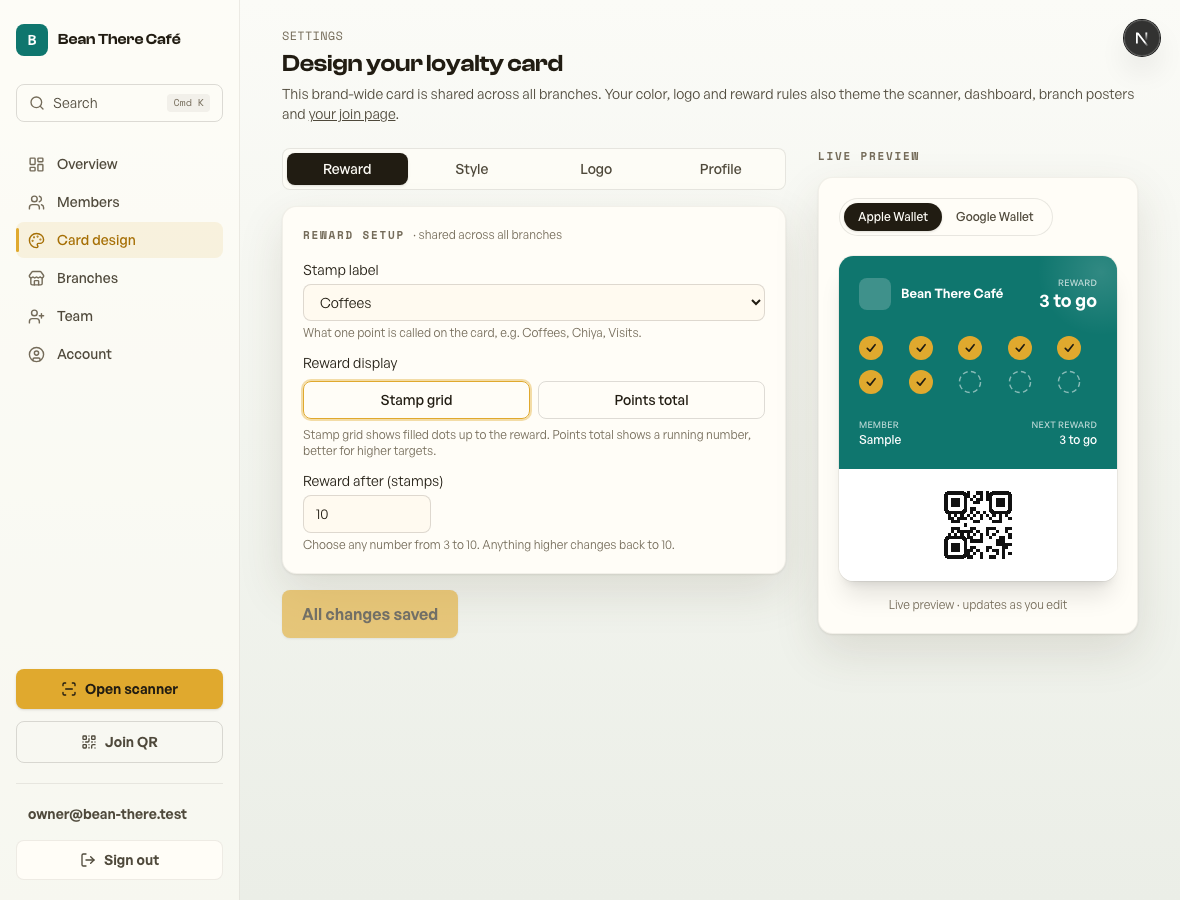
Set your pass location in Card design → Profile. You can also set locations per branch from Branches, because the same customer pass can be relevant near more than one café location.
What it does
- Helps the saved wallet pass appear near your café or branch.
- Lets customers open the pass faster when they are at the till.
- Works only after the customer has added the pass to Apple Wallet or Google Wallet.
What it does not do
- Retriever does not track where customers are.
- You do not see customer location history.
- It does not replace scanning - staff still scan the customer's wallet QR.
- The phone decides whether to show the pass, based on that customer's settings.
When it goes away
The pass is a temporary lock-screen suggestion, not a permanent button. It normally goes away after the customer leaves the area, after the phone decides the pass is no longer relevant, or when the customer dismisses it. It can also stop appearing if the customer removes the pass, disables location or Wallet suggestions, has weak location signal, or uses battery/focus settings that hide suggestions. The customer can always open Wallet manually and show the pass.
Enable it for one location
- Open Dashboard → Card design.
- Go to Profile and open Pass location.
- Add your café address, then tap Find coordinates from address.
- If you are standing at the café, you can use Use my current location instead.
- Check that coordinates were found, then tap Save changes.
Enable it for branches
This is for Apple Wallet and Google Wallet nearby pass suggestions. It does not create or edit your café listing in Apple Maps; Apple Maps listings are managed separately through Apple Business Connect.
- Open Dashboard → Branches.
- Edit each branch that should appear near customers.
- Add the branch address, then tap Find on map. If the map lookup cannot find the branch, use Use my current location while you are at the branch, or enter latitude/longitude manually.
- Save the branch. The same customer pass can surface near any branch that has coordinates saved. Retriever refreshes installed passes after branch location changes, but each phone still decides when to show the lock-screen suggestion.
If it does not show on the lock screen
First check that the customer has actually added the pass to Wallet. Nearby suggestions are controlled by Apple/Google and can depend on location permissions, internet connection, battery settings and how recently the pass refreshed. Ask the customer to open Wallet manually once; if the pass is there, it can still be scanned normally.
Location is a convenience, not a requirement. Your join QR, scanner, phone lookup and web card still work even if a customer's phone never surfaces the pass automatically.
Thanks for using Retriever · We reply within a day