Inviting & managing staff
Invite staff or managers, assign branches, review activity, and remove access.
Give your team their own logins from Dashboard → Team or from a branch team page. No shared passwords.
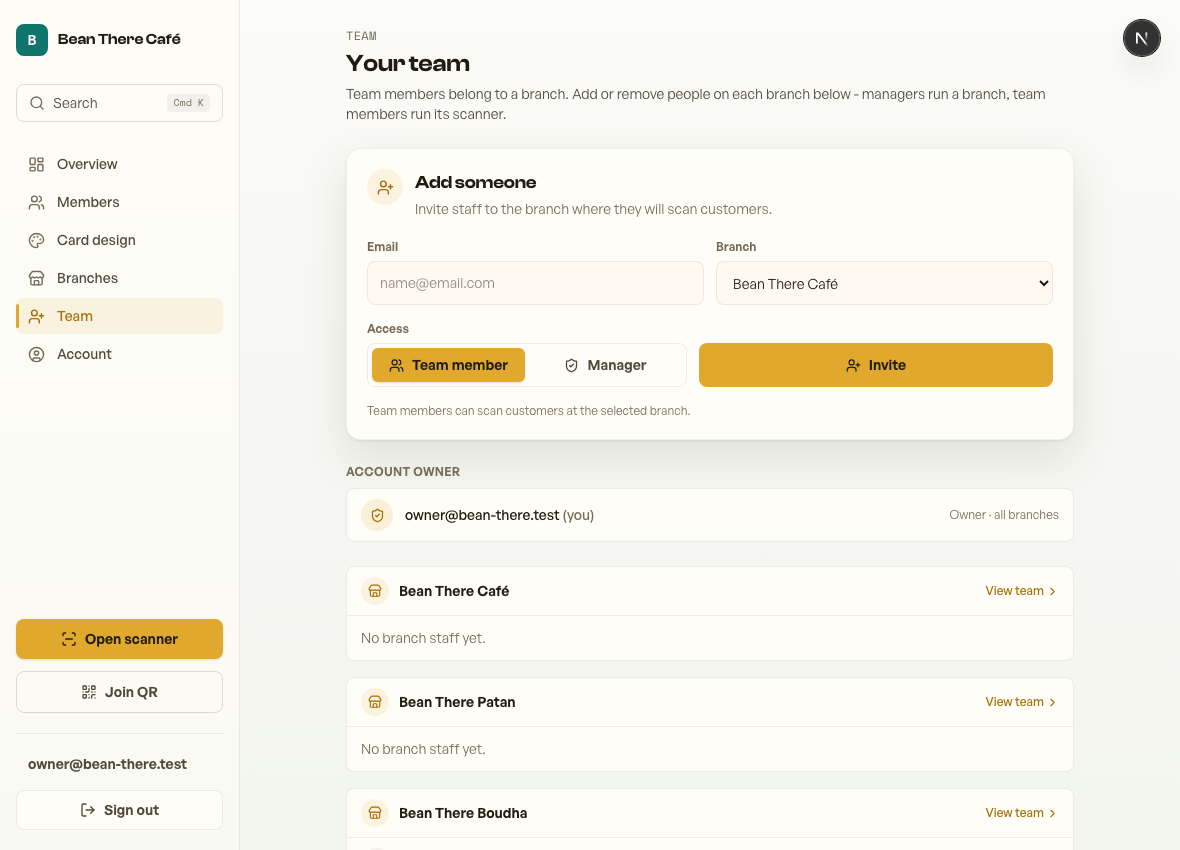
Invite someone
On Dashboard → Team, enter their email, choose a branch and select Manager or Team member. We email them a secure link to set their own password - you never share or see it.
Accepting the invite & signing in (staff)
Send this to your new team member:
- Open the invite email from Retriever and tap the link.
- Choose a password. That sets your login and confirms your email in one step, and signs you in.
- You land straight on the scanner, ready to award stamps.
- Next time, sign in at retrieverlabs.net/login with your email and that password. (Tip: add the scanner to your home screen - see that guide.)
Invite link expired or never arrived? Ask the owner to re-send it from the Team page, and check spam.
What staff can and can't see
Team members get their branch scanner. Managers can see their branch dashboard and branch team page. Owners keep the full brand dashboard, card design, billing, branches and customer list.
Branch teams
Branches have their own team pages, but Team is still the fastest owner-level place to add someone. Use the branch page when you want to review or remove people for that location.
Staff activity
The Team page shows who scanned customers this week, grouped by staff member and branch. That makes it easier to spot training needs or thank the people keeping the program moving.
Removing someone
Remove a teammate from the branch team page anytime; their access ends immediately. A branch team member can also remove themselves from Account → Password and security using Leave this team.
Thanks for using Retriever · We reply within a day