Using the scanner
Scan a wallet QR to award stamps, set a quantity, search by name or phone, redeem, and undo.
The scanner is where staff award and redeem. Owners open it from the dashboard sidebar; managers and team members land on their assigned branch scanner when they sign in.
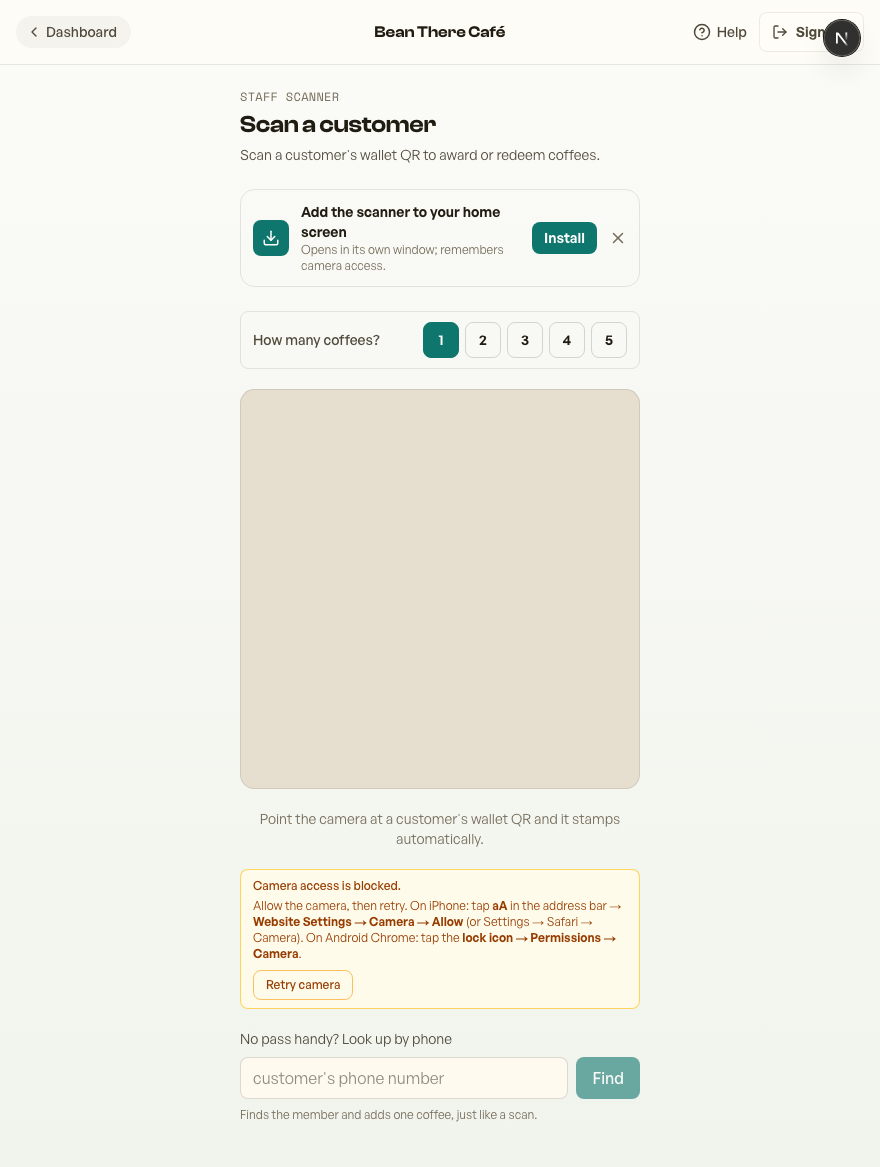
Award a stamp
Point the camera at the customer's wallet QR - it stamps automatically and shows a confirmation with their new balance. No tapping required.
Branch scanners
Branches all scan the same customer wallet passes and share one brand-wide balance. The branch scanner only changes the operations layer: scan history, staff activity, manager dashboards and branch reporting.
Award more than one
For a multi-item order (e.g. someone buys 3 coffees), tap the quantity 1 to 5 at the top before you scan - the scan then adds that many at once.
No pass on them?
Search by name or phoneright on the scanner. Start typing and matching members appear with their balances; tap one to award the same as a scan. Handy when a phone's dead or the pass isn't installed.
Redeem a reward
When a customer reaches your threshold, the scanner shows a Redeem button instead of auto-stamping. Tap it and their card resets to start the next reward.
Made a mistake?
The confirmation screen has an Undo button that reverses the exact stamp or redeem you just recorded.
Install it like an app
Add the scanner to your phone's home screen so it opens like an app and remembers the camera permission (no re-prompt each shift). See Add the scanner to your phone's home screen for step-by-step instructions.
In-app browsers (Instagram, Messenger, etc.) block the camera on iPhone. If the camera won't start, open the page in Safari or Chrome - or just use phone look-up.
Thanks for using Retriever · We reply within a day